

Where to embed your link?
Your agent URL can be placed anywhere users interact with your product. Common entry points:- In-product button - A contextual help button inside your application
- Email CTA - Onboarding, re-engagement, or expansion emails
- Marketing site - Landing pages, pricing pages, or demo CTAs
- Help centers - Provide 1:1 personalized support
How does the link work?
When a user clicks your agent link, they are taken through the following steps:- Landing page - The user lands on your agent’s page and enters their email address to begin the session.
- Microphone permissions - First-time users are prompted to enable microphone access. A quick-action button guides them to their browser’s permission settings to minimise friction.
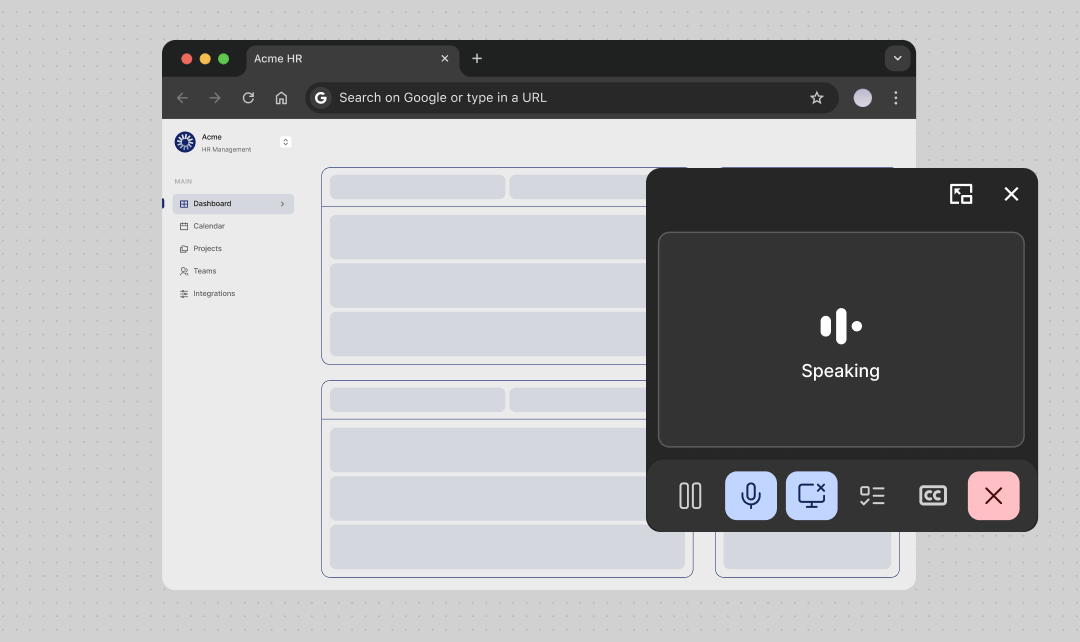
- Call starts + picture-in-picture - Once permissions are granted, the call begins.
- Agent introduction - The agent checks audio and asks what the user needs. Depending on configuration, it may prompt the user to begin working through a predefined agenda or set of goals.
- Picture-in-picture - When you navigate away from the page hosting the call, a draggable picture-in-picture (PiP) component appears. It holds media controls so users can manage the session while navigating your product — without returning to the call URL.
- Screen sharing - The user is prompted to share their screen and open your product. Quick-action buttons are provided to make this step seamless. Users can share a tab, a window, or their entire screen.
- Guided session - The agent guides the user through goals. At any point, users can pause to ask questions, request deeper clarification, or skip a goal.
- Call summary - When the session ends, either after completing all goals or when the user is finished, the agent summarises what was covered.
How can the agent see the screen?
Quarterzip sees the user’s screen the same way a screen-share works in a video call. This gives the agent real-time visual context so it understands what the user is looking at and can provide relevant, step-by-step guidance. Users can share and unshare their screen at any time. Quarterzip never captures screen content without an active share.Does the link support users with tasks that exist outside of our product?
The link does support users with workflows in third-party tools. The picture-in-picture component is independent of the call URL. It persists as users navigate away from your product, and can be dragged across windows or monitors. Because the agent can see the user’s screen, it can assist with workflows in third-party tools, provided the agent has been configured with the relevant knowledge.Embedding the link in a button
The most common pattern is a plain anchor tag styled as a button. Keep the CTA copy action-oriented and clear that it starts a voice call:Using the link in email CTAs
Quarterzip links work anywhere a URL is valid — including email. Drop the link into onboarding sequences, re-engagement campaigns, or post-trial follow-ups:Linking from a help center
Add the agent link to help center articles as a contextual escalation path. Place it at the top for high-complexity topics, or at the bottom as a fallback:Linking from in-app empty states
Empty states are high-intent moments — the user is on a feature page but hasn’t taken action yet. A Quarterzip link here offers guided help exactly when it’s needed:Sharing links with multiple stakeholders
Because the Quarterzip link requires no login, it’s easy for a buyer champion to forward it to other stakeholders. Anyone with the link can start a session. This makes it well-suited for:- Sales rooms (Arrows, Dock) — embed the link so champions can share it internally
- Proposals and decks — add the link as a resource for evaluators who want a live demo
- Slack or Teams messages — paste the link directly into a channel for team onboarding
Passing context to the agent
The agent link accepts acontext query parameter — a free-text string the agent receives at the start of the call. Use it to pass information about the user so the conversation can be personalised without the user having to repeat themselves.
Use cases include:
- Current plan — so the agent knows what features are available
- Country or locale — for region-specific guidance
- Handover notes — if the user is being transferred from another tool like Intercom
URLSearchParams.set() handles URI encoding automatically. If you’re building the URL manually, use encodeURIComponent():
Context is capped at 2,000 characters. Keep it concise — a few key facts are more useful to the agent than a large block of unstructured text.
Passing user identity via URL parameters
The Quarterzip agent page readsuserId and userDisplayName from the URL query string. This lets you pre-identify users before they start a call, so their details are captured in the call log without requiring them to type anything.
| Parameter | Description |
|---|---|
userId | The user’s unique identifier — typically their email address or your internal user ID |
userDisplayName | The user’s name or username to display in the call log |