

New to Quarterzip? Be sure to visit the Getting Started page before continuing with this section.
Where to embed your link?
Your agent URL can be placed anywhere users interact with your product. Common entry points:- In-product button - A contextual help button inside your application
- Email CTA - Onboarding, re-engagement, or expansion emails
- Marketing site - Landing pages, pricing pages, or demo CTAs
- Help centers - Provide 1:1 personalized support
What is the User’s Experience?
1
User clicks the link
The user is taken to the Quarterzip-hosted page for the agent. This page is customised with your logo & branding.
2
User starts a call with the Agent
First-time users are asked to grant microphone access permissions. The Quarterzip agent introduces themselves & handles any immediate questions or needs from the user.
3
User is asked to share their screen
The user is prompted to share their tab, window, or screen, and to open the product if required.
4
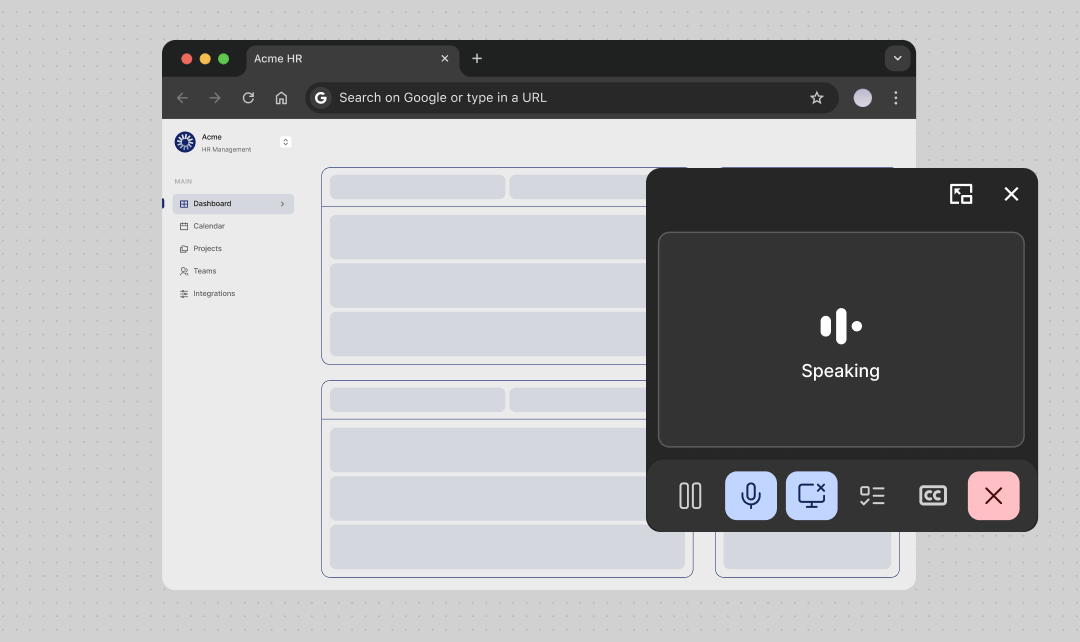
User is presented with an Agent player across tabs
The agent’s player appears early in the call in a Picture-in-Picture (PiP) window. An always-on-top, draggable window from which the user can control the call where ever they go.
5
Agent guides the user
After resolving any immediate issues the user may raise, the Quarterzip agent offers the user through guides you’ve crafted; e.g. first-time onboarding, new-feature discovery, deeper technical support.
Distribution
Embedding the link in a button
The most common pattern is a plain anchor tag styled as a button. Keep the CTA copy action-oriented and clear that it starts a voice call:Using the link in email CTAs
Quarterzip links work anywhere a URL is valid — including email. Drop the link into onboarding sequences, re-engagement campaigns, or post-trial follow-ups:Linking from a help center
Add the agent link to help center articles as a contextual escalation path. Place it at the top for high-complexity topics, or at the bottom as a fallback:Linking from in-app empty states
Empty states are high-intent moments — the user is on a feature page but hasn’t taken action yet. A Quarterzip link here offers guided help exactly when it’s needed, and can be paired with a more persistent entry-point (e.g. a sidebar button) so users can return to the agent after their first session.Sharing links with multiple stakeholders
Because the Quarterzip link requires no login, it’s easy for a buyer champion to forward it to other stakeholders. Anyone with the link can start a session. This makes it well-suited for:- Sales rooms (Arrows, Dock) — embed the link so champions can share it internally
- Proposals and decks — add the link as a resource for evaluators who want a live demo
- Slack or Teams messages — paste the link directly into a channel for team onboarding
Link API Reference
URL Query Parameters
The Quarterzip agent link can receive additional information through the URL’s query parameters. Providing auserId will allow users to skip the form on the agent’s landing page.
Passing context to the agent
The agent link accepts acontext query parameter — a free-text string the agent receives at the start of the call. Use it to pass information about the user so the conversation can be personalised without the user having to repeat themselves.
Use cases include:
- Current plan — so the agent knows what features are available
- Country or locale — for region-specific guidance
- Handover notes — if the user is being transferred from another tool like Intercom